Connect Databricks as a Data Source
Zuar Portal supports Databricks as a data source. Databricks is configured like any other external database: you store a connection string in a Database Connection Named Credential and assign it to a data source. There is no separate "Databricks" option to select — the connection type is determined by the connection string.
Prerequisites
- A running Databricks SQL warehouse. A stopped warehouse cannot answer queries, so enable auto-resume or start it before running queries.
- Your Databricks server hostname, the warehouse HTTP path, and a personal access token (PAT).
Create the connection
- Open the admin console and go to Named Credentials.
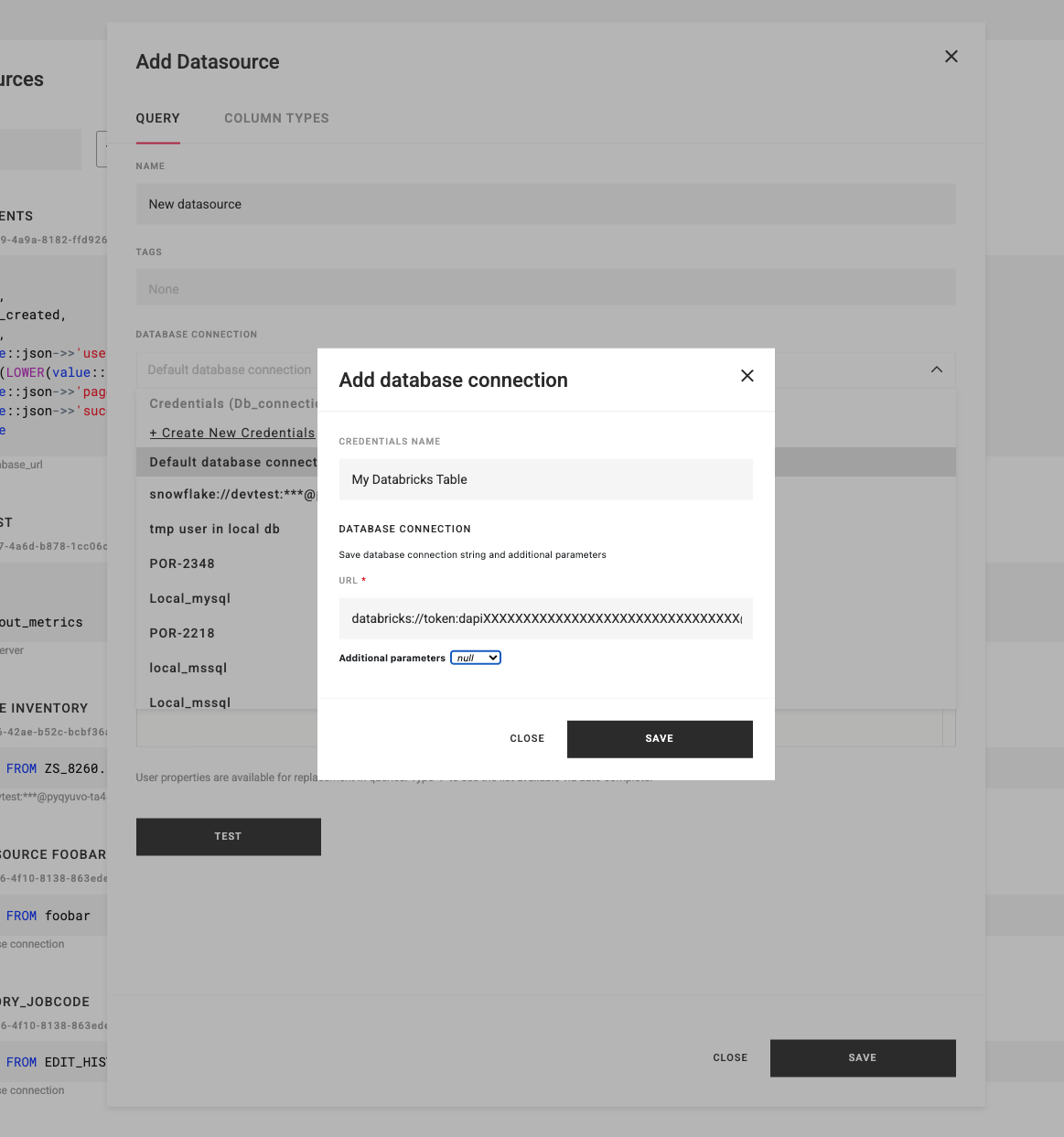
- Click New Credential and choose the Database Connection type.
-
Enter the connection string in the following form:
databricks://token:<PAT>@<server-hostname>?http_path=<http_path>For example:
databricks://token:dapiXXXXXXXXXXXXXXXX@dbc-1234abcd-5678.cloud.databricks.com?http_path=/sql/1.0/warehouses/abc123def456The username is the literal word
token, and the password is your personal access token. Find the hostname and HTTP path in your Databricks workspace under SQL Warehouses → (your warehouse) → Connection details. -
Save the credential.
Use it in a data source
- Create or edit a data source.
- Set its Database to the Databricks credential you created.
- Enter your
SELECTquery and click Test to verify the connection.
Notes and caveats
Databricks SQL differences
- Use
STRINGorVARCHARinstead ofCHAR— Databricks requires a length onCHAR. - Timestamp columns are returned as UTC-aware values.
- Queries fail when the SQL warehouse is stopped; start it or enable auto-resume.