Content Packs
A content pack is a self-contained, shareable bundle of portal objects. Content packs let you reuse curated content — dashboards, blocks, themes, and everything they depend on — by importing ready-made packs into your portal.
A pack can contain pages, blocks, queries, data sources, themes, partials, snippets, and assets. Dependencies (such as the assets a theme uses, or the queries a block runs) are included automatically. When you import a pack, object IDs are remapped so it applies cleanly to your portal, and you assign your own credentials to any data sources it brings in.
Portal administrators can browse the Zuar-managed library of ready-made content packs.
Browsing Content Packs
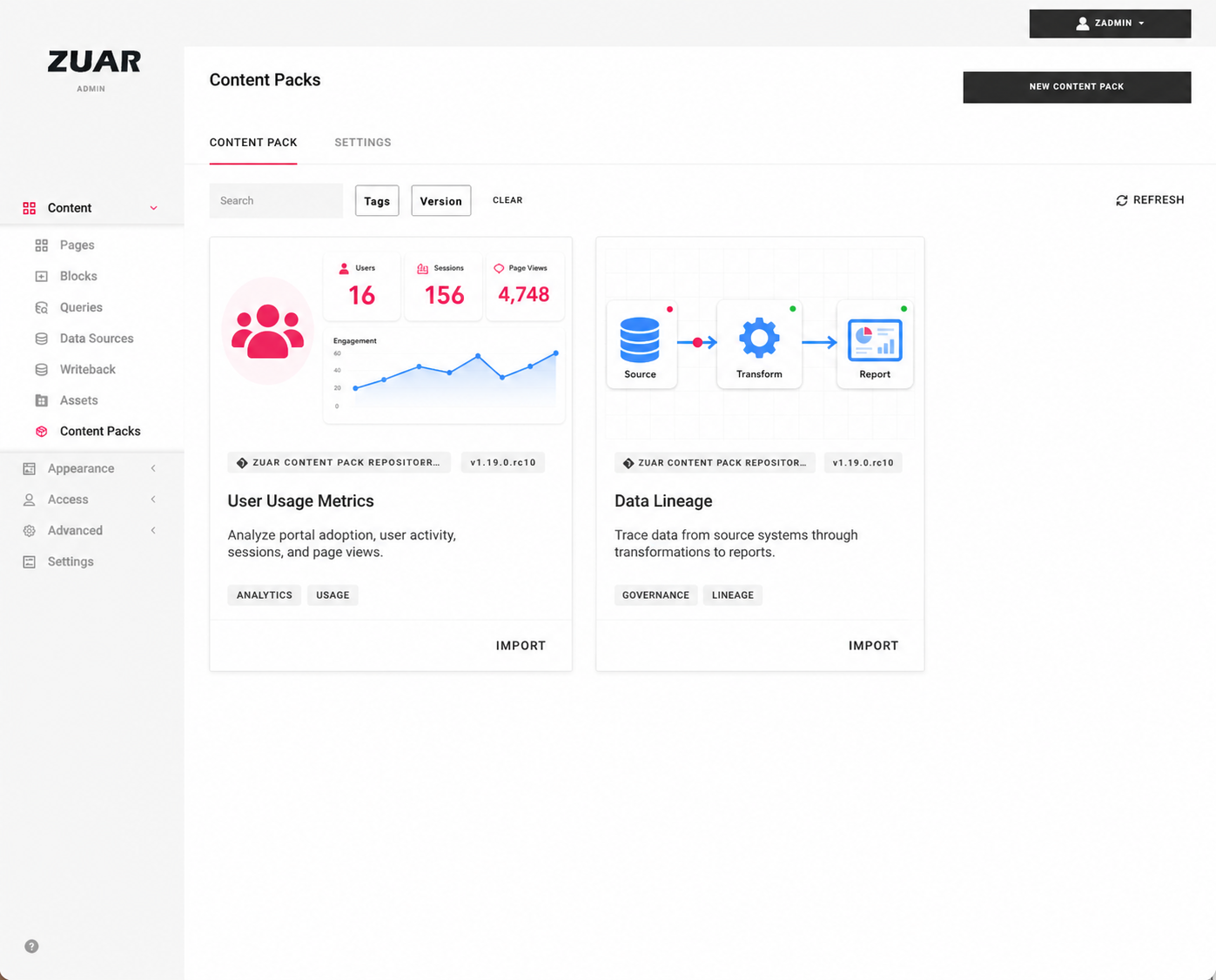
In the admin console, go to Content Packs. Each available pack appears as a card showing its thumbnail, name, version, description, and tags. Each card has an IMPORT button at its bottom-right, and a menu with Details and Delete.
The library refreshes periodically. Click Refresh to check for newly published packs immediately.
Importing a pack
- Click IMPORT at the bottom-right of a pack's card.
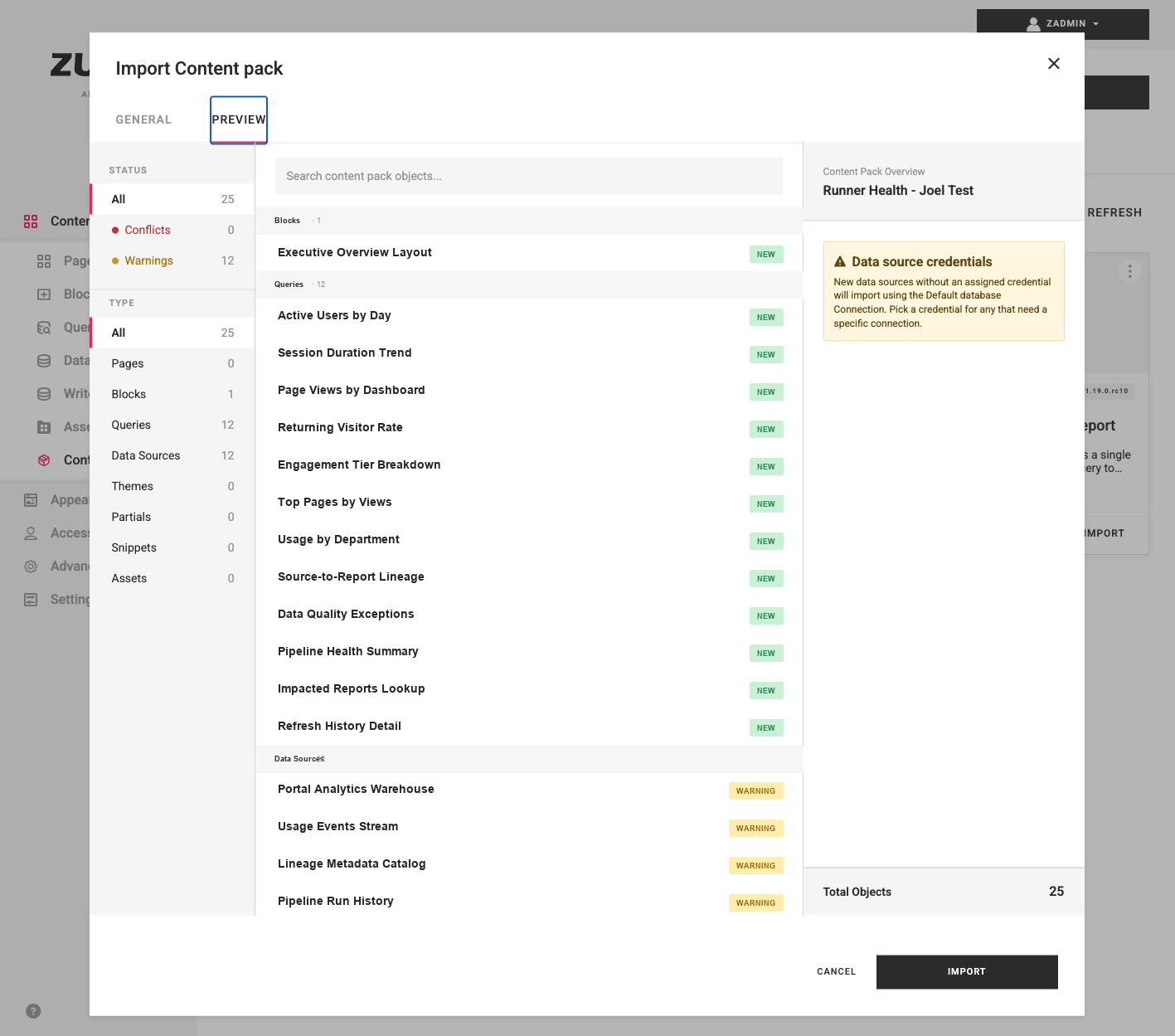
- Open the Preview tab. Each object is analyzed against your portal and labeled NEW or CONFLICT.
- Resolve any conflicts by choosing Skip or Overwrite — individually, or with a single default for all conflicts.
- For new data sources, assign a database connection (otherwise the default database is used). For new chatbot blocks, assign an LLM connection.
- Click Import.
Note
A conflict means this same pack previously imported that object into your portal — it is not a simple name collision. Choose Skip to keep the existing object or Overwrite to replace it.
Publishing content packs
If you run more than one portal, you can publish your own content packs to share content between them. Publishing writes a pack to a git repository that your other portals can then browse and import.
Connect your repository
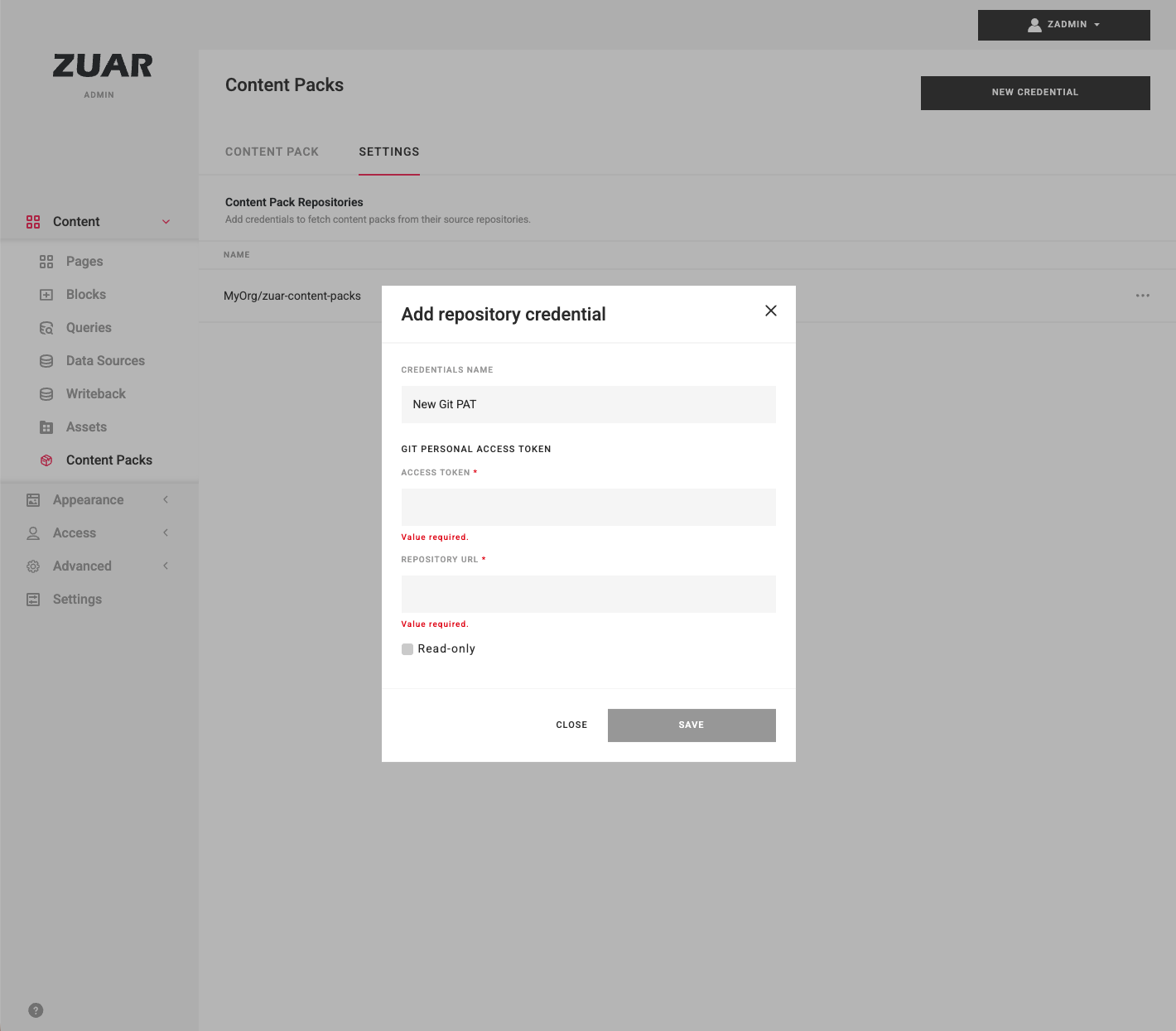
On the Settings tab, under Content Pack Repositories, click New Credential and add your repository as a GIT Personal Access Token:
- the repository URL (HTTPS or SSH),
- a GitHub personal access token, and
- a read-only option for repositories you only import from.
Publish a pack
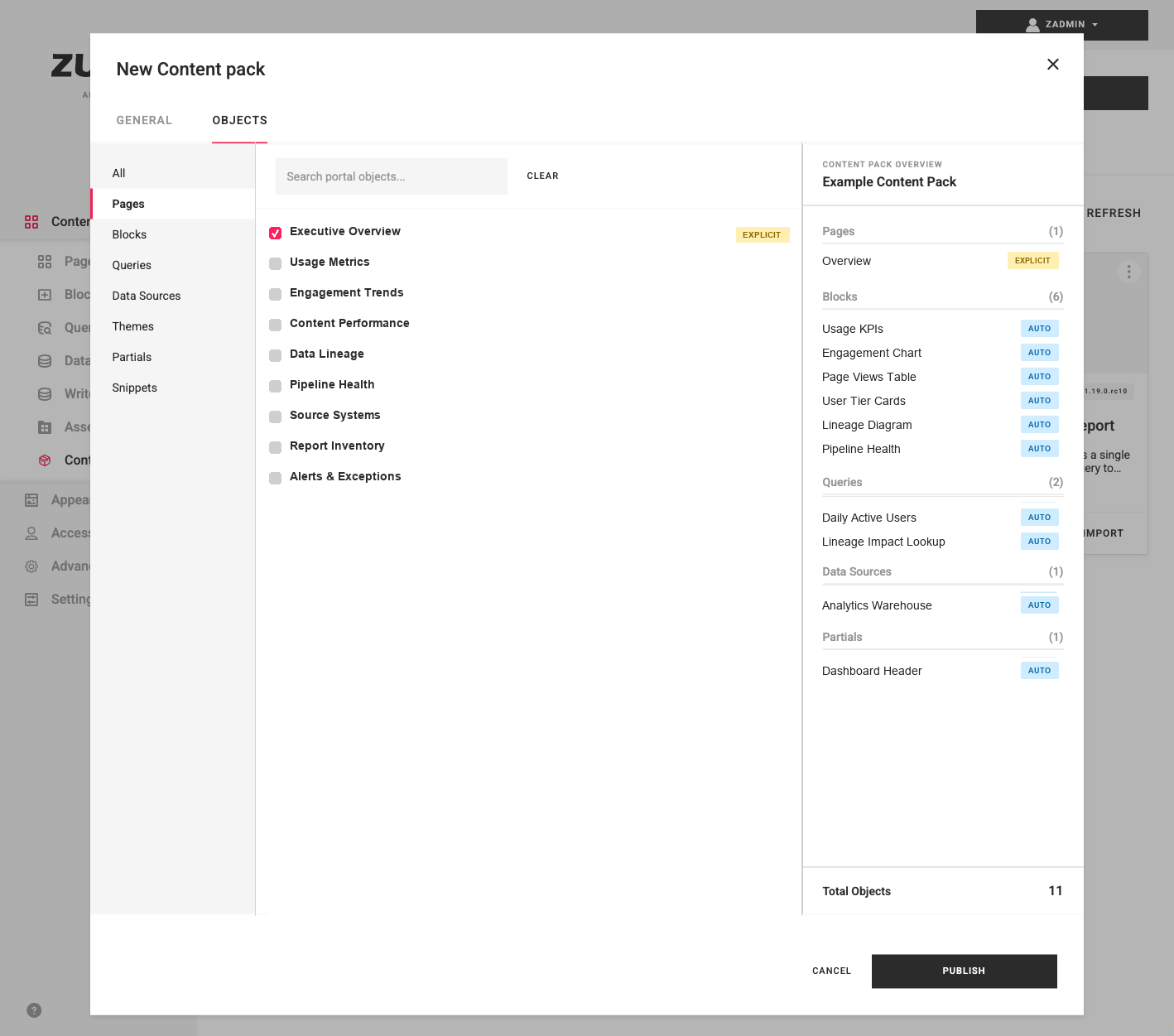
- On the Content Pack tab, click New Content Pack.
- On the General tab, enter:
- Name.
- Slug — an identifier used in URLs (lowercase letters, digits, and dashes). It is derived from the name until you edit it.
- Description.
- Thumbnail — an optional image (PNG, JPG, SVG, GIF, or WebP; max 2 MB).
- Tags.
- Repository — the repository to publish to.
- On the Objects tab, select the objects to include. Dependencies are added automatically and marked
AUTO; objects you select directly are markedEXPLICIT. The overview shows a running total. - Click Publish.
Once published, the pack is available to every portal that uses that repository. If a pack with the same slug already exists, you are prompted to overwrite it.