Data Table
Data Table blocks allow you to add a table with built in filtering, sorting, and pagination into Zuar Portal.
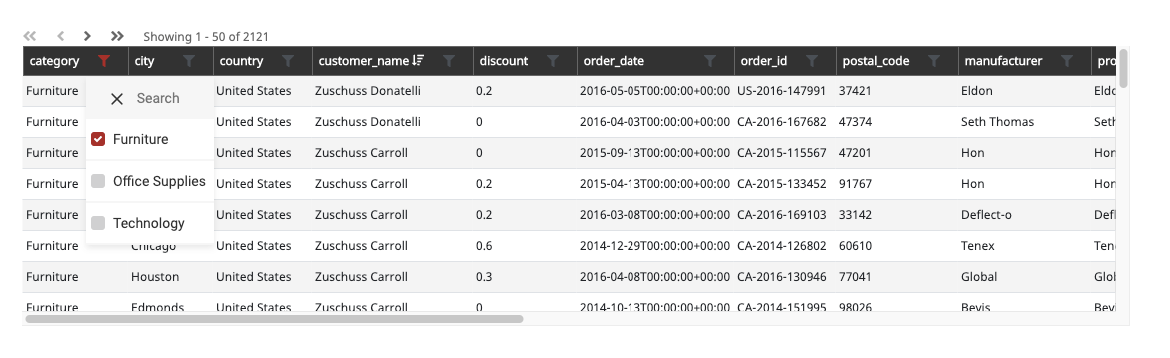
The Data Table block is dynamically built from a query against a data source.
Add a Data Table Block
This block type can be added to a Page's grid via the edit menu, sidebar editor, or admin console.
Select Data Table from the Content section after creating a new block.
Table Tab
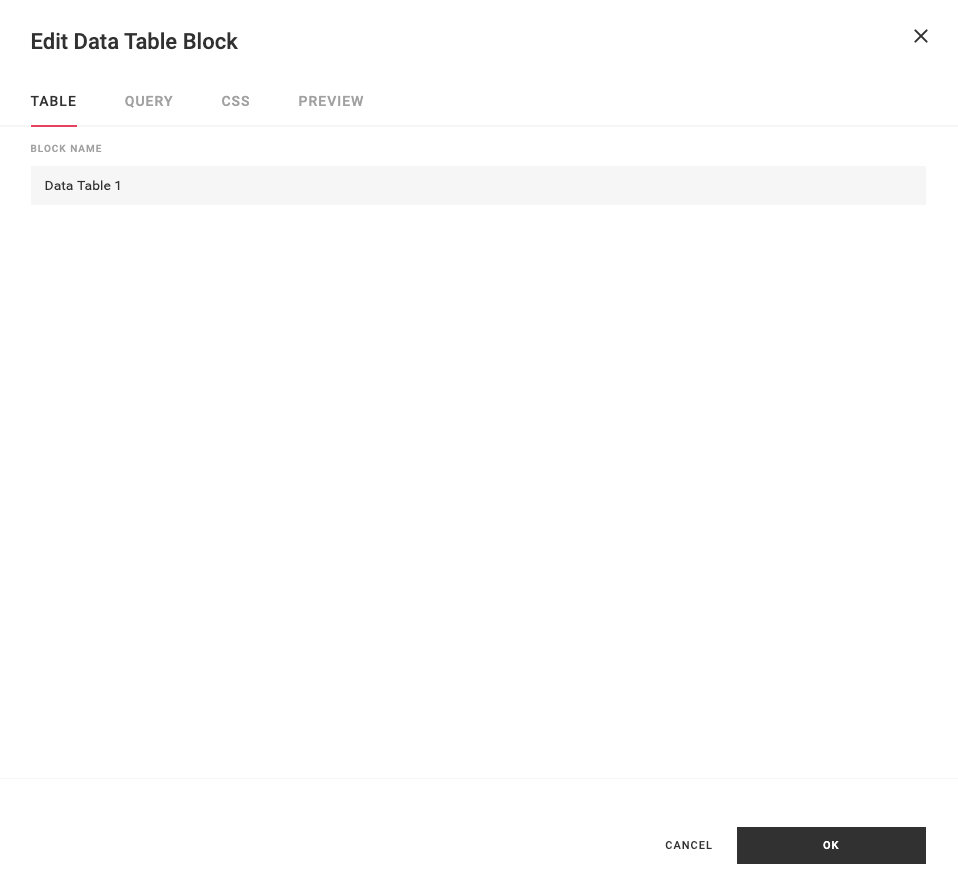
- Block Name - Give the Data Table block a descriptive name.
- Tags - Add any Tags that will help organize or find the block.
Query Tab
This block type can use the results from a data source query. Learn more about block query.
- Data Source - Choose the data source which provides the data for the Data Table from this drop-down.
- Columns - Columns shown in the Data Table will appear once a Data Source is selected.
- Query Keywords - SQL keywords that filter, group, or limit the data source.
- Pagination - The number of rows displayed on each page of the table. The default is 50. Set this field to 0 to display all rows. Beware this may result in long load times or very long verical scrolls.
- Test Query - Allows you to preview the data.
CSS Tab
To change the style of the Data Table block, update the CSS rules in the CS. Learn more about block CSS.
Preview Tab
This block type can be previewed. Learn more about block preview.
Filtering with a Data Source Filter
The Data Table block has built in filters for every column coming in the block query. Learn more about data source filters.